


New article
Recently updated
Navigating the system

Who is this article for?
Users who want to learn how to navigate the system.
No special access or permissions are required.
This article explains how to navigate the main interface and configure your personal settings after logging in.
1. Accessing the system
You will receive a URL and credentials to log in with, typically your company or organisation credentials. After logging in, you will see a page with the map centred on your site or area of operations.
The default view is the Submit Inquiry portal, where you can manually submit a complaint if needed.
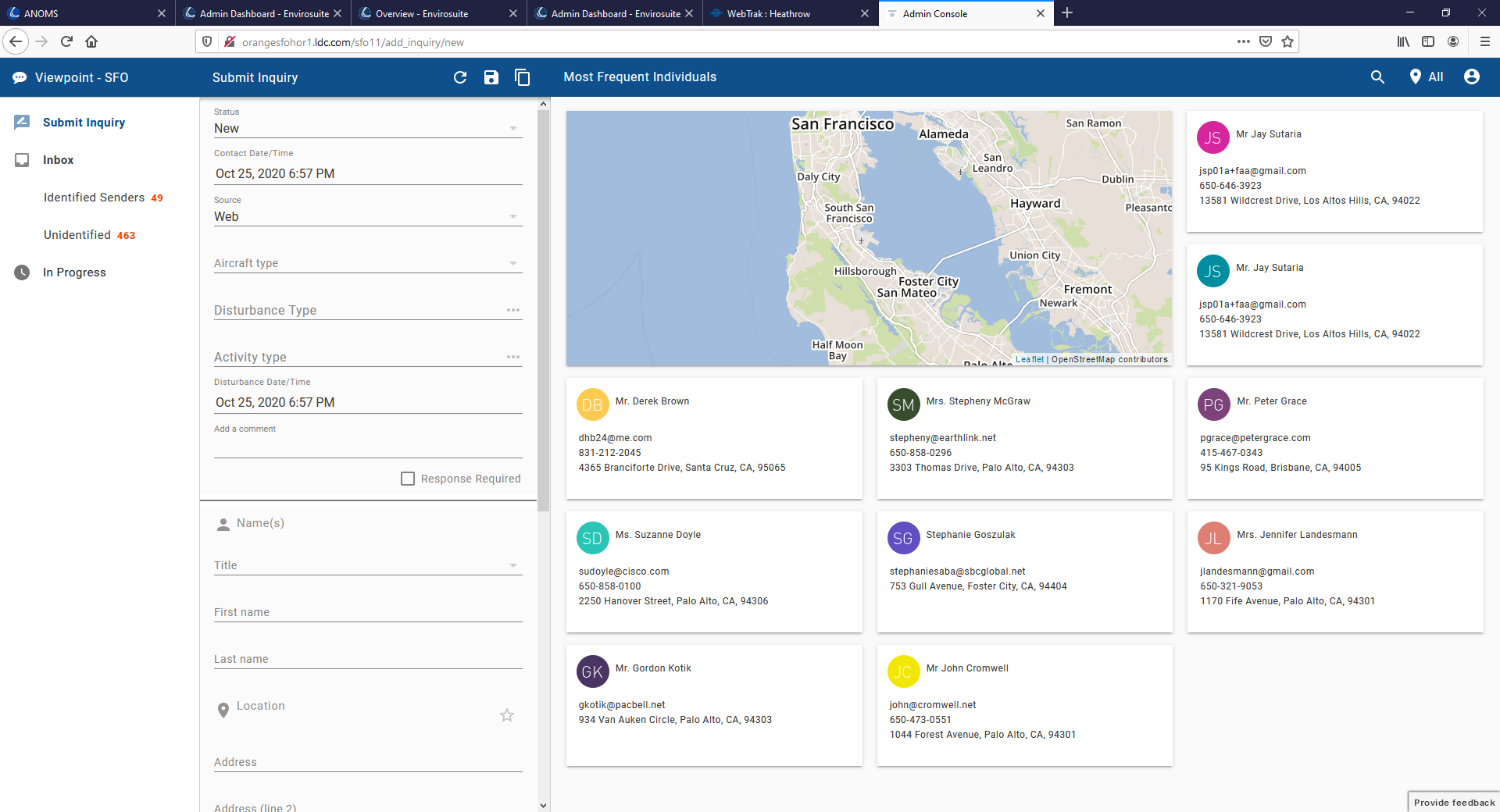
The location icon and name inform you which site (airport) is current. If Ideagen Viewpoint is used as a multi-site solution, this will be a dropdown selector where you can change to a different airport.

2. Searching the system
To search for a location or keyword:
- Click the Search (Magnifying glass icon).
- Enter the name or keyword you are looking for.
- Press Enter.
- Review the list of potential matches displayed by the app.